

The three big libraries of free 3D models are MakerWorld, Printables and Thingiverse. With a Bambu Lab printer, start on MakerWorld, where models can come with ready-made print profiles. Printables suits any printer; Thingiverse is a long-running archive of model files. Before you download, check photos of real prints and the licence.
Free files vary a lot. Some come with every setting chosen for your printer and a gallery of successful prints; others are a bare file nobody has printed. Here’s how to tell them apart, and what each licence lets you do.
All our own files are on one page: free STL files from The 3D Hub, in eight packs.
We also make a few free files of our own: start with our free Christmas STL files, fifteen flat ornaments, a stand-up tree and gift tags.
New to all of this? Start with our beginner’s guide to 3D printing, which takes you from choosing a printer to a first successful print.
What you need before you download
- A printer that’s already set up. If yours is still in the box, start with setting up and running your first print. Still choosing one? Our ranked list of 3D printers is the place to start.
- Its slicer. This software turns a model file into instructions for your printer; Bambu Lab printers use Bambu Studio. Knowing what a slicer actually does makes every download easier to judge.
- Your bed size. The Bambu Lab A1 mini prints up to 180 × 180 × 180 mm and the A1 up to 256 × 256 × 256 mm. Anything bigger has to be split.
- A spool of PLA, the usual first filament for every printer we list.
MakerWorld, Printables and Thingiverse side by side
| Library | Ready-to-print settings | Proof that it prints | Licence | Best for |
|---|---|---|---|---|
| MakerWorld | Print profiles: Bambu Studio 3MF files with orientation, supports and colours set | A real print photo on every profile, plus ratings | Chosen by the designer for each model | Bambu Lab owners |
| Printables | Model files, sometimes with pre-sliced G-code | Makes (photos of finished prints), comments and ratings | Creative Commons, GNU or BSD | Any printer brand |
| Thingiverse | Model files you slice yourself | Makes and comments | Chosen by the designer for each model | Long-standing designs |
MakerWorld: print profiles for Bambu Lab printers
MakerWorld is Bambu Lab’s library, and its big draw is the print profile: a Bambu Studio 3MF file holding the model plus the settings to print it, from orientation, speed and supports to colours, filaments and the target printer. A model can carry several profiles, from its designer or from other users.
Read “tested” carefully. Every profile must pass MakerWorld’s cloud slicing check for the printers it lists and include at least one photo of a print made with it. That proves the file slices for your printer, not that the result is strong or clean. Other people’s ratings and photos are the real test.
A1 mini and A1 owners get the most from it. With another brand, download the raw model files, such as an STL, when the designer has added them, and slice them yourself.
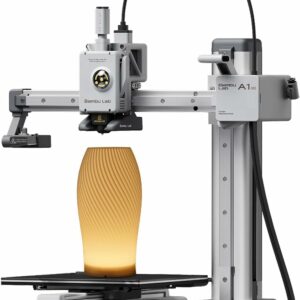
Bambu Lab’s compact first printer: choose a MakerWorld profile made for it and the slicing settings come ready. Check that models fit its 180 mm bed.
Printables: Prusa’s library, open to every printer
Printables is run by Prusa Research, which opened it to owners of every printer brand. Its quality signals are makes, comments and ratings. Its viewer previews STL, 3MF and G-code, and some projects include pre-sliced G-code. G-code is written for one printer and one set of settings, so use it only if it names your machine; otherwise slice the model file yourself.
Thingiverse: a long-running archive of model files
Thingiverse holds many long-standing designs, such as 3DBenchy, the small boat designed for testing and benchmarking printers, now released into the public domain. Expect model files rather than printer profiles. Each model page shows its licence and the makes people have posted; some designers ask makers to note their print settings, which helps when the description gives none.
How to judge a free model before you print it
These checks take a few minutes and can save a lot of filament. They’re in order of how much they tell you.
- Photos of real prints. Renders show the design, not the result. MakerWorld asks for real print photos on models and profiles; elsewhere, favour galleries that show a printed object.
- Makes and ratings. Several makes from different people are the best evidence a file prints. Bambu Lab asks raters to judge the print result and to explain low ratings with settings and photos, so read the low ones first.
- The latest comments. Look for the same problem twice: parts that don’t fit, missing supports, something that cracks. Fixes often turn up there too.
- The preview. Bambu Lab suggests checking print time, filament use, final size, recommended materials, compatible printers, supports and infill before you start.
- The licence, if you plan to share, adapt or sell what you print.
Licences: what you can do with a free model
Free to download doesn’t mean free to do anything with. The licence on the model page sets the rules, and Creative Commons licences combine these elements:
| Element | What it means for you |
|---|---|
| BY | Credit the designer. All six Creative Commons licences include it. |
| NC | Non-commercial use only: no selling prints or files. |
| ND | No adaptations: share the model only unchanged. |
| SA | Anything you adapt must be shared under the same licence. |
| CC0 | Not an element: the model has been placed in the public domain. |
So selling prints at a craft fair needs a licence without NC: CC BY, CC BY-SA, CC BY-ND or CC0, and with the first three you still credit the designer. Posting a modified version needs one without ND. Printables also allows GNU and BSD licences, and MakerWorld lets you upload a changed model as a remix only if you have the right to. Whatever the library, go by the wording on the model page.
Step by step: from search to finished print
- Search with purpose and size: “cable clip 6 mm” beats “clip”.
- Shortlist results with real print photos and several makes.
- Run the five checks above on your favourite.
- On MakerWorld, pick a print profile made for your printer; elsewhere, download the STL or 3MF.
- Open it in your slicer and check the size, orientation and supports.
- Print one copy before you print a batch.
Mistakes to avoid
Trusting an untested model with weight
A shelf bracket or coat hook with no makes showing it in use has proved nothing. Printed parts can crack along their layers: MakerWorld’s rating guidelines list cracking and weak layer bonding as signs of insufficient strength. SUNLU gives the SUNLU PLA Filament a heat deflection temperature of 55 ± 5 °C, so a PLA part near a radiator or in a hot car can soften. If a failure could hurt someone or break something valuable, buy a rated part instead.
Choosing a multicolour profile without the hardware
On the A1 and A1 mini, multicolour needs the AMS lite, sold separately or bundled, so pick a single-colour profile until you have one. Our guide to how multicolour printing works explains the rest.
Scaling a functional part
Scaling resizes every hole and peg too, so screws and mating parts stop fitting. If a model is too big, look for a split version, and if that keeps happening, weigh up whether the A1’s bigger bed is worth it.
What to try next
Give something back: post a make with your settings, or rate the profile on how the print came out. That’s how the next beginner knows a file works.
Then try colour. The Bambu Lab A1 Combo pairs the 256 mm A1 with the AMS lite for up to four colours in one print. To compare it with other machines, browse every 3D printer we list.
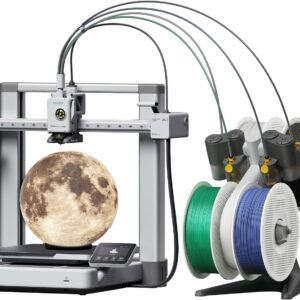
The full-size A1 with the AMS lite included: up to four colours on a 256 mm bed, which opens up MakerWorld’s multicolour profiles.
And when no library has what you need, designing your first model in Tinkercad is the natural next step.
Common questions
Can I sell things I print from free 3D models?
Only when the licence allows commercial use. Under Creative Commons, that means CC BY, CC BY-SA, CC BY-ND or CC0; anything marked NC rules out selling prints. Check each model page, because similar models can carry different terms.
Can I use MakerWorld models with a printer that isn't a Bambu Lab?
The print profiles are Bambu Studio files made for Bambu Lab printers. If the designer has also uploaded raw model files, such as an STL, you can download those and slice them for any printer.
What is the difference between an STL and a 3MF file?
An STL holds the shape only, so you choose every setting in your slicer. A 3MF can carry settings too: a MakerWorld print profile is a Bambu Studio 3MF with the orientation, supports, colours and target printer saved inside.
Why does a model fail for me when the makes look fine?
Often the cause is on the printer side. Bambu Lab points to a dirty build plate for warping, and to damp filament or too high a nozzle temperature for stringing. Check that the profile suits your printer and filament, then compare your settings with those in the makes.
Sources
- How to Upload Models and Print Profiles — Bambu Lab Wiki
- MakerWorld Rating Guidelines — Bambu Lab Wiki
- PrusaPrinters.org is now Printables.com — Prusa Research
- Terms of Service of Printables.com — Prusa Research
- #3DBenchy, the 3D printing torture-test — Thingiverse
- Sharing Openly, Sharing Globally (CC licences) — Creative Commons